Home Screen
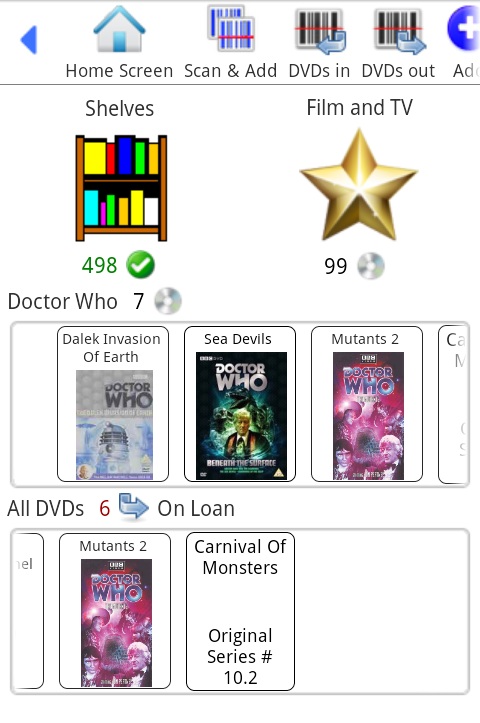
This is the main entry point for the app, it provides quick access to your favourite CD lists
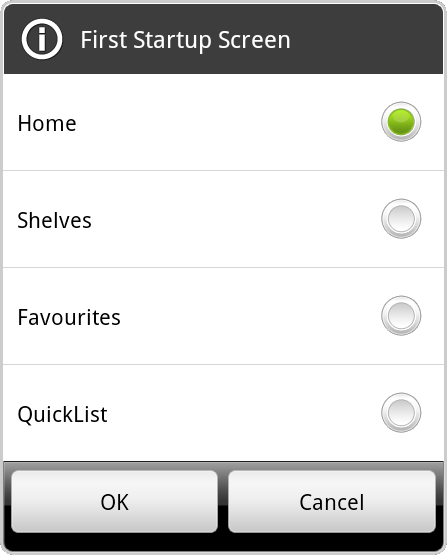
You can use the autostart option on the Home action button or the Settings Screen to change which screen is shown at startup
Screen

Opens the Shelves Screen
Displays the current shelf total as set in Settings
CDs on multiple shelves are not double counted in this total

Opens the CDs Screen
Displays the count of CDs
Any CDs list can be set to this using the Home option on the main menu
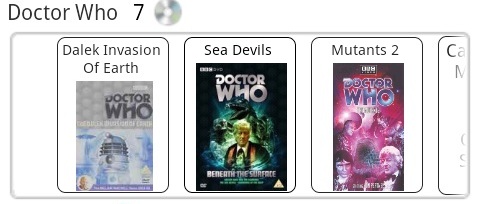
Displays a quicklist of the CDs Chosen
Displays the count of CDs in the list
Pressing on the title takes you to the CDs Screen for the list
The images can be dragged left/right, Pressing on a CD brings up a menu for the CD
For random lists a new set can be shown using the Refresh option on the Home action button
Any CDs list can be set to this using the Home option on the main menu
The second quicklist can be hidden via the Settings Screen
Menu/Actions


Add


Scan & Add


Scan One


Home Screen


Library Scanning


Share/Import/Export


Search


Settings


Help & Info
Add CD
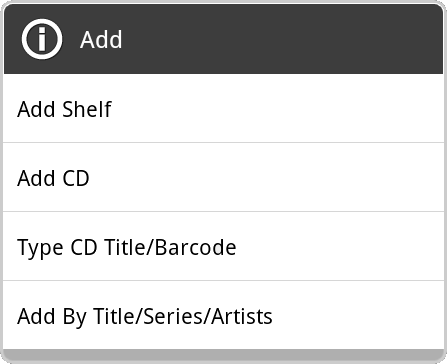
You can add (type) a new Shelf
You can start the Edit Details Screen to add a new CD
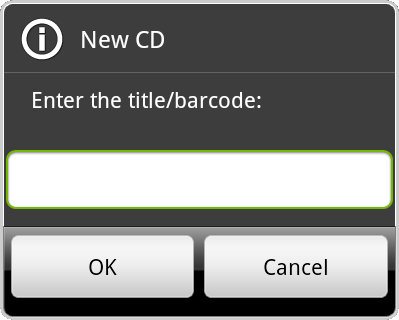
You can type a CD title or a Barcode to add it to the current shelf immediately:
You can Find & Add CDs by Title or Series or Artist
Repeatedly scans a Barcode and adds it to the current shelf
If a Barcode already exists, a new CD will not be added
An information lookup will be triggered for each new item scanned (in the background)
See the Scanning Page for more details on scanning barcodes
Scans a Barcode then displays the Edit Details Screen
An information lookup will be triggered as soon as the Edit Details Screen is displayed
See the Scanning Page for more details on scanning barcodes
Set home screen options - this is the same as pressing the 'Home' action button
You will be presented with various choices:
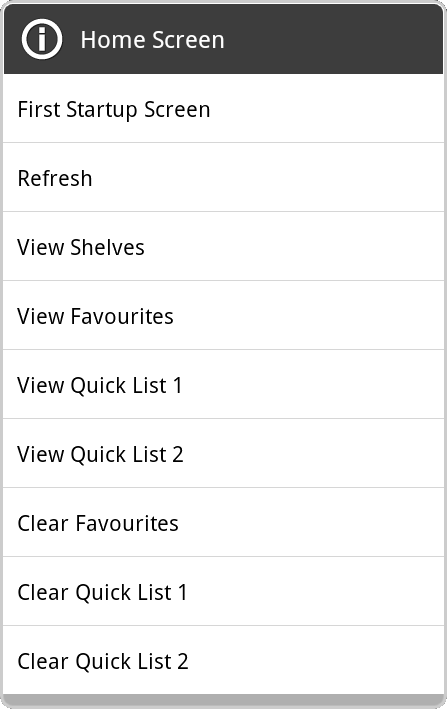
You can refresh the home page lists, or view one of the lists
or clear the various list settings
You can change the screen that is shown when the app first starts:
Only displayed when loaned to field enabled in the Advanced Fields Settings
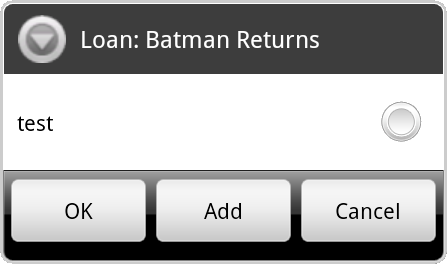
Scan to loan CDs out or to return CDs
You will be prompted for who to loan to:
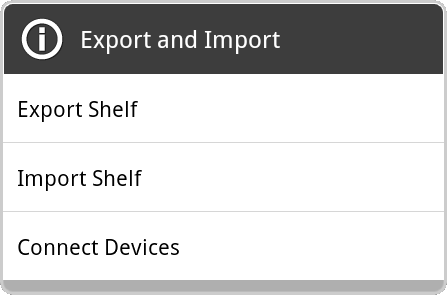
Starts the export or import process
or starts Connect to other device process
Opens the Search Screen or searches for CDs in various ways
See the Search Page for more details
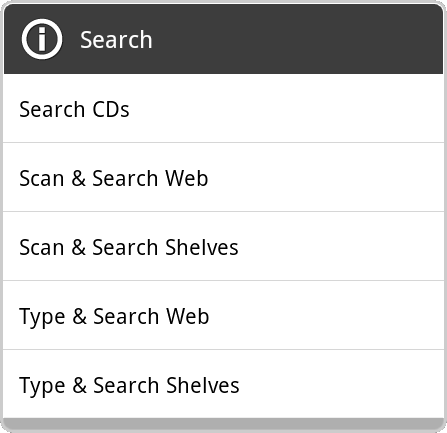
Starts the Settings Screen
Quicklist Menu
Opens the Edit Details Screen, to edit the CD
Changes the name of the selected CD:

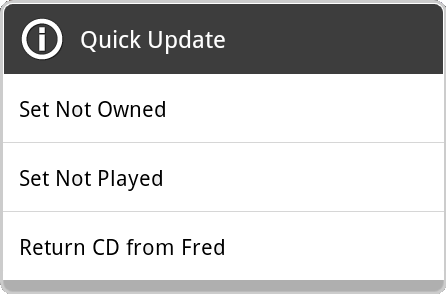
Quickly update any tag field and the loaned field:
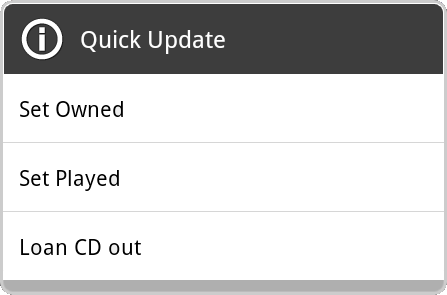
You can also see who has been loaned a CD and return it:
Quickly move the selected CD to a different shelf:
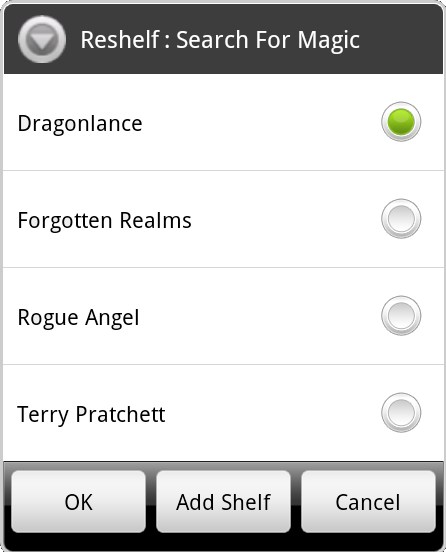
You can also type the name of a new Shelf using the 'New Shelf' button
Allows deletion of a CD, you will be asked to confirm the delete
This will update the displayed image (only available if Images are visible)
This will download the image (only available if Images are visible)